Tired of that dreaded loading circle? We're diving into the real reasons your streaming services are buffering and sharing simple, effective tips to get you back to binge-watching in peace.
There’s a unique kind of modern agony that comes from seeing that spinning wheel of doom in the middle of a movie night. You’re settled in, the snacks are perfect, the plot is thickening, and then… it happens. The image freezes, replaced by a relentlessly rotating circle. It’s a special kind of digital torture that can test the patience of a saint. Honestly, I’ve had moments where I was so invested in a scene that the sudden halt felt like a personal affront from the internet gods.
It’s easy to just throw your hands up and blame the streaming service, but the truth is often a bit more complicated. Buffering is the symptom, not the disease. It’s your device’s way of telling you that it’s playing video faster than it can download it. Think of it as a traffic jam on the information superhighway, and your movie is stuck right in the middle of it.
So, before you fire off an angry tweet or consider giving up on technology altogether, let’s play detective. Unraveling the mystery of why your videos buffer is the first step toward reclaiming your uninterrupted, binge-watching bliss. Most of the time, the solution is closer to home than you think.
It’s Not You, It’s Your Internet Speed
Let's get the most obvious suspect out of the way first: your internet connection. This is the foundation of your entire streaming experience. If the pipe delivering data to your home is too narrow, nothing else you do will matter much. Every streaming service has baseline speed requirements, and they climb significantly with higher video quality.
For example, streaming in standard definition (SD) is pretty forgiving, but who watches in SD anymore? For a crisp high-definition (1080p) stream, you generally need at least 5 Mbps (megabits per second). But if you’ve invested in a 4K television to enjoy ultra-HD content, you’re looking at a requirement of 25 Mbps or more, and that’s just for one device. I recently read a report that suggested a comfortable 4K streaming experience, especially in a multi-device home, really needs closer to 50 Mbps to avoid issues.
The first thing you should do is run a speed test. Just search for "internet speed test" and use a reliable service to see what you're actually getting. If the numbers are way below what you’re paying for, a simple modem and router reset can sometimes work wonders. If not, it might be time for a chat with your internet service provider (ISP). And if your plan is on the lower end, it could be the perfect excuse for an upgrade.
The Chaos in Your Castle: Your Home Network
Okay, so your internet speed is solid. What’s next? The culprit could be lurking within your own walls: your Wi-Fi network. A powerful internet plan is useless if your home network is acting as a bottleneck. Wi-Fi is incredibly convenient, but it's also susceptible to all sorts of interference and physical barriers.
Think about where your router is placed. Is it tucked away in a cabinet in the corner of your basement? That’s probably not helping. Walls, floors, and even large furniture can degrade the signal. For the best results, your router should be in a central, elevated location, free from obstructions. I once moved my router from behind the TV to a bookshelf in the living room, and the difference in signal strength on the other side of the house was night and day.
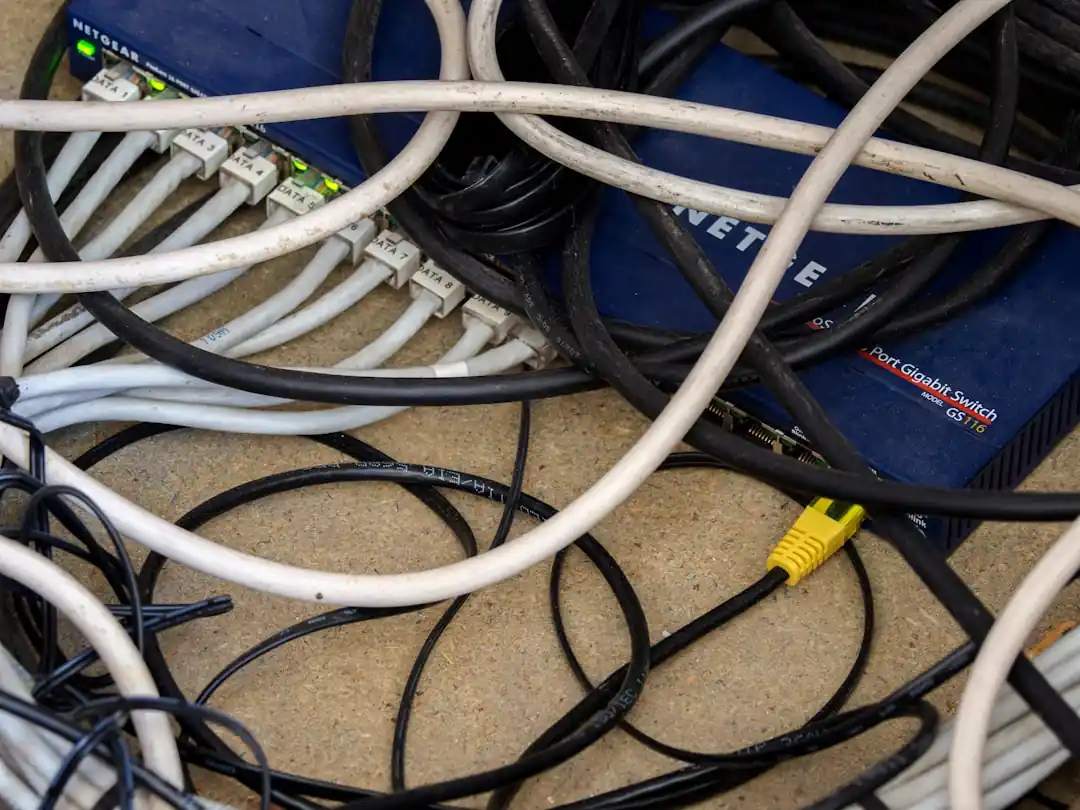
Also, consider the other devices creating "noise" on your network. Microwaves, cordless phones, and even your neighbor's Wi-Fi can interfere, especially on the crowded 2.4 GHz band. If your router is dual-band, switching your streaming device to the 5 GHz band can provide a faster, more stable connection, though its range is shorter. And if you have a tangle of ancient cables and a router that’s seen better days, it might be the weak link. A newer router with modern standards (like Wi-Fi 6) can handle more devices and deliver data much more efficiently.
Sometimes, It’s Actually Them: The Streaming Service
While we often blame our own setup, there are times when the problem truly is on the other end. Streaming services are massive operations, but they aren't immune to technical difficulties. If a brand-new, highly anticipated show just dropped, the service's servers could be overwhelmed by millions of people trying to watch at the same time.
This is a classic case of server-side congestion. There's not much you can do in this situation except wait it out or try again during off-peak hours. A good way to check if the problem is widespread is to visit a site like Downdetector or search social media. If thousands of other users are reporting issues with the same service, you can be pretty sure the problem isn't with your home network.
Another, less common issue can be the Content Delivery Network (CDN) the service uses. CDNs are networks of servers distributed globally to deliver content to you from a location that's geographically closer, which speeds up load times. However, if the specific CDN server you're connected to is having a bad day, it can lead to buffering. This is usually temporary and often resolves itself as network traffic is rerouted.
Is Your Device the Weakest Link?
Finally, let's look at the device you're watching on. An old smart TV, an underpowered streaming stick, or a laptop bogged down with a dozen other tasks might be struggling to keep up. Decoding and playing high-resolution video is a demanding process, and if your device's processor can't handle it, you'll get that dreaded stutter.
If you're streaming on a computer, try closing other applications and browser tabs. All those background processes consume CPU and memory resources that could be used for your video. It’s also a good habit to periodically clear your browser's cache. Over time, this stored data can become corrupted or bloated, slowing everything down.
For smart TVs and streaming sticks, make sure the device's firmware is up to date. Manufacturers often release updates that include performance improvements and bug fixes. And if you're using a very old device, it might simply be time for an upgrade. Technology moves fast, and a device that was top-of-the-line five years ago might not have the hardware to smoothly process a 4K HDR stream today.
Ultimately, banishing the buffering wheel is a process of elimination. Start with the simple things—restarting your gear, checking your speed, and closing background apps—before you start thinking about buying a new router or calling your ISP. With a little patience and troubleshooting, you can get back to what really matters: finding out what happens in the next episode.

Arizona's Crown Jewels: A Guide to the Best National Parks
The Unseen Anchor: How Mentorship Is a Lifeline for At-Risk Teens

Related Posts
 MOBILE
The Great Console Debate: How to Choose the Right Gaming System for Your Family
Feeling stuck between a Switch, a PlayStation, and an Xbox? Let's break down which gaming console is the perfect fit for your family's game nights.
 MOBILE
From Fragile to Formidable: The Surprising Evolution of Foldable Phone Durability
Remember when the idea of folding a smartphone screen in half felt like a disaster waiting to happen? Let's talk about how far they've come, because the story is pretty incredible.

Popular Posts

Rethinking Non-Profit Promotion: Creative Strategies That Actually Drive Event Impact

Beyond Stark White: The Best Interior Paint Colors to Light Up Your New Space

The Simple Pre-Workout Fueling Strategy That Saved My Long Runs