Let's be honest, we've all been there. That frantic moment you need a physical copy of something, but it's stuck on your phone. It's time to fix that.
Remember those days when printing meant firing up your computer, finding the file, and then waiting for what felt like an eternity? Honestly, it wasn't that long ago, but with our smartphones becoming the central hub for so much of our lives, the idea of not being able to print directly from them feels almost archaic. Whether it's a concert ticket, a recipe you want to keep, or that important document you just signed digitally, printing from your phone is no longer just a cool trick; it's a modern necessity. And the good news? It's usually far simpler than you might imagine.
I used to think connecting my phone to a printer was some kind of dark art, reserved only for the most tech-savvy among us. My first few attempts involved a lot of frustrated sighing and wondering why it couldn't "just work." But after a bit of digging, I realized that most modern printers are built from the ground up to communicate with our mobile devices. The key is understanding the different ways they can talk to each other. Once you get the hang of it, you'll be printing wirelessly with a newfound sense of freedom, leaving those old, clunky computer-centric habits in the dust.
The Easiest Method: Your Printer's Own App
Probably the most reliable and feature-rich way to connect your phone to your printer is by using the manufacturer's dedicated app. Every major printer brand—we're talking HP, Canon, Epson, Brother, you name it—offers a free app that acts as a command center for your device. These aren't just basic print utilities; they are surprisingly powerful tools that can completely change how you interact with your printer.
For example, the HP Smart app or Canon's PRINT Inkjet/SELPHY app will not only walk you through the initial Wi-Fi setup step-by-step, but they also unlock a whole suite of features. You can scan documents directly to your phone's camera, check your ink or toner levels, order new supplies, and even perform maintenance tasks like cleaning the print heads, all without ever touching the printer itself. It’s like having the entire control panel in your pocket. To get started, just head to your phone's app store, search for your printer's brand, download the official app, and make sure both your phone and printer are on the same Wi-Fi network. The app will handle the rest.
For Apple Users: The Magic of AirPrint
If you have an iPhone or iPad, you're in for a treat. Apple's built-in printing framework, called AirPrint, is the definition of seamless. As long as your wireless printer is AirPrint-compatible (and most sold in the last decade are), you don't need to download any special apps or drivers. It just works, almost like magic. The only requirement is that your iOS device and your printer are connected to the same Wi-Fi network.
When you're ready to print a webpage, a photo, a note, or a document, you just tap the "Share" icon (the little box with an arrow pointing up) and scroll down to find the "Print" option. Your phone will automatically scan the network for available printers. When your printer's name appears, you just select it, choose the number of copies, and hit "Print." It's so simple and intuitive that it feels like it should have always been this way. This is often the first thing you should try, as it requires zero setup.
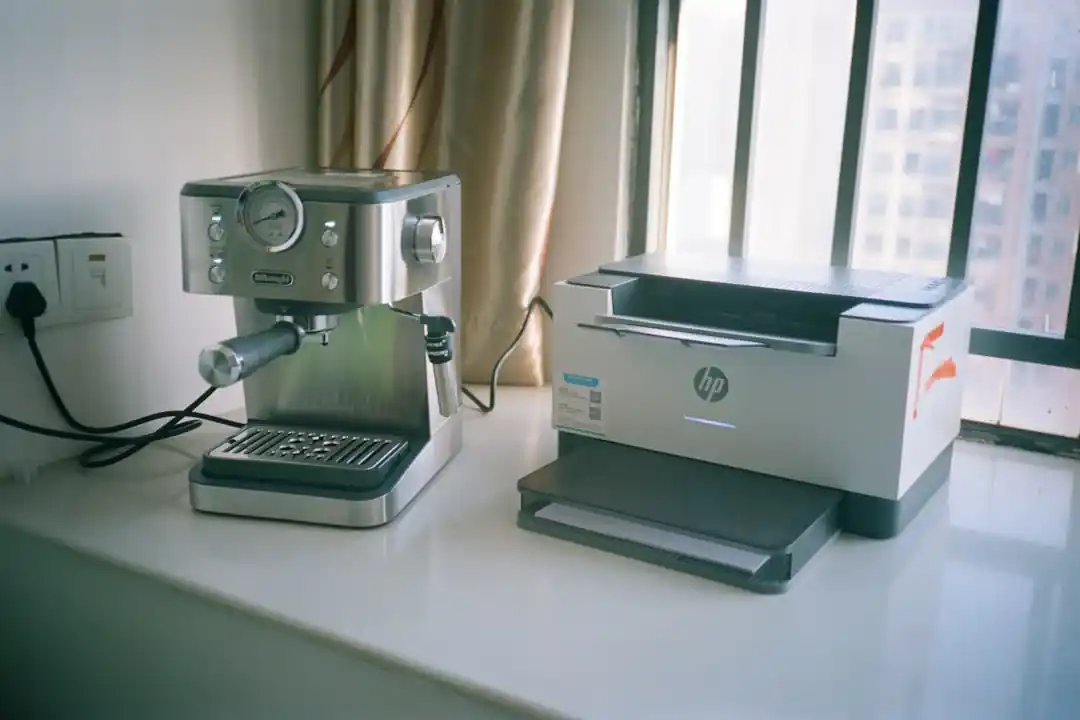
For Android Users: Default Print Service and Wi-Fi Direct
Android's printing ecosystem is a bit more varied, but it's just as capable. Most modern Android phones come with a "Default Print Service" built-in, which functions a lot like AirPrint. When you're connected to the same Wi-Fi network as a compatible printer, it should automatically appear in your list of available printers when you select the print option from any app. You can manage these services by going to Settings > Connected devices > Connection preferences > Printing.
But what if you don't have a Wi-Fi network? This is where a feature called Wi-Fi Direct comes in handy. Many modern printers can broadcast their own private Wi-Fi signal. You enable this feature on your printer's control panel, then go to your phone's Wi-Fi settings and connect directly to the printer's network (it will show up in the list like any other router). Once connected, you can print your documents without needing an internet connection at all. It's perfect for printing on the go or at a friend's house without having to get on their network.
When It Just Won't Connect: Troubleshooting 101
Of course, technology can be fickle. If you're tapping your foot waiting for a printer to appear on your phone, don't give up. The most common culprit, and I mean this happens all the time, is that your phone and printer are on different Wi-Fi networks. Many homes have a main network and a "Guest" network; if your phone is on one and the printer is on the other, they can't see each other. Double-check that they're both on the exact same network name.
If that doesn't work, the age-old advice of "turn it off and on again" is your next best friend. Seriously. Restart your phone, your printer, and even your Wi-Fi router. This simple act can clear up a surprising number of temporary glitches. If you're still stuck, make sure your printer's firmware is up to date (you can usually check this through the manufacturer's app or website) and that your phone's operating system is also current. A simple update can often resolve hidden compatibility issues.
Once you get the hang of printing from your phone, it really does feel like a superpower. It streamlines one of those little life tasks that used to be a genuine hassle, freeing you up to focus on more important things. That little bit of saved time and frustration is a small victory, but it's one worth celebrating.

Why Won't My Phone Print?! Your Guide to Solving Mobile Printing Mysteries
ADRs vs. Foreign Stocks: What’s the Real Difference for a US Investor?

Related Posts
 MOBILE
The Great Console Debate: How to Choose the Right Gaming System for Your Family
Feeling stuck between a Switch, a PlayStation, and an Xbox? Let's break down which gaming console is the perfect fit for your family's game nights.
 MOBILE
From Fragile to Formidable: The Surprising Evolution of Foldable Phone Durability
Remember when the idea of folding a smartphone screen in half felt like a disaster waiting to happen? Let's talk about how far they've come, because the story is pretty incredible.

Popular Posts

Rethinking Non-Profit Promotion: Creative Strategies That Actually Drive Event Impact
Beyond Stark White: The Best Interior Paint Colors to Light Up Your New Space

How to Actually Master a New Language on Your Own (No Magic Gene Required)