That feeling of dread when you realize a crucial email is nowhere to be found. Let's explore why Gmail's smart filters sometimes outsmart themselves and how you can reclaim control.
Honestly, there are few things more frustrating in our digital lives than realizing an important email has gone missing. You know the feeling—waiting for a job offer, a client response, or a flight confirmation, only to find it hours (or days) later, languishing in your "Promotions" tab or, even worse, the dreaded Spam folder. It’s like sending a certified letter that the post office decides looks too much like a pizza flyer and reroutes to the junk pile. We've all been there, scrolling frantically, muttering to ourselves, "But this was important!"
So, what's really going on behind the scenes of our supposedly intelligent inboxes? Is Gmail just randomly deciding to hide things from us? Not exactly. At its core, Gmail's filtering system isn't trying to be malicious; it's trying to be helpful. Google introduced categories like Primary, Social, and Promotions to combat inbox clutter and help us focus. The system uses a complex dance of algorithms and machine learning to sort the daily deluge of messages. It analyzes everything from the sender's address to the email's formatting, looking for patterns.
The problem is, sometimes the algorithm gets it wrong. An email from a new client using a marketing-automation platform, a newsletter you actually want to read, or a notification from a service you use can all get swept into the wrong category because they share traits with promotional content. It’s a constant, evolving process, but thankfully, it’s one you can influence. You don't have to be a passive victim of the algorithm.
The First Line of Defense: Teaching Gmail What Matters
Before diving into complex settings, the most powerful tool you have is your own behavior. Gmail is always watching and learning from how you interact with your mail. Consistently performing a few simple actions can dramatically improve its accuracy over time. Think of it as training a new assistant—you have to show them what's important.
The simplest action is the drag-and-drop. When you find an important email in the Promotions or Social tab, don't just read it there. Click on it and physically drag it to your "Primary" tab. After you do this, Gmail will display a small yellow box at the top of the screen asking, "Do this for future messages from [sender's email]?" Click "Yes." This single click is a powerful signal to Gmail that you consider this sender a priority. It's the most direct way to say, "Hey, you got this one wrong. This person is a VIP."
Another foundational habit is using the "Not Spam" button correctly. If a legitimate email lands in your Spam folder, don't just move it to your inbox. Open the Spam folder, select the email, and click the "Report not spam" button at the top. This does more than just retrieve the message; it helps train Google's spam filters, making it less likely that emails from that sender (and similar emails) will be flagged in the future. It’s a small act of digital citizenship that benefits both you and others.
Creating Filters: Your Personal Inbox Bodyguards
When you need to guarantee that emails from a specific sender or with a certain subject line always get your attention, it's time to create a filter. Filters are your personal, non-negotiable rules for incoming mail. They are the ultimate way to tell Gmail, "No matter what your algorithm thinks, these messages are important and I want to see them."
Creating a filter is surprisingly easy. You can start directly from a message you want to control. Open the email, click the three vertical dots next to the reply arrow, and select "Filter messages like these." This will open a menu where the "From" field is already populated with the sender's email address. You can also create filters based on subject lines, keywords within the email, and more.
The real power comes in the next step. After you define the email you want to filter, click "Create filter." You'll be presented with a list of actions. To ensure you always see these messages, select two crucial options: "Never send it to Spam" and "Categorize as: Primary." You can also choose to "Always mark it as important," which will add the yellow priority marker to the email. This combination creates an ironclad rule that bypasses both the spam filter and the promotional tabs, ensuring your most critical emails land exactly where you need them, every single time.
The Nuclear Option: Auditing and Simplifying Your Inbox
If you feel like you're constantly fighting the tab system, you might consider a more drastic approach. For some users, the categories create more work than they save. If you find yourself constantly digging through the Promotions tab for emails you actually want, you can just turn it off.
Head into your Gmail settings by clicking the gear icon and then "See all settings." Go to the "Inbox" tab. Here, under "Categories," you can uncheck any of the tabs you don't want to use, like Promotions, Social, Updates, and Forums. When you uncheck them, all emails that would have been sorted into those categories will now appear directly in your Primary inbox. Be warned: this will make your Primary inbox much busier. But for some, the trade-off is worth it for the peace of mind that comes from knowing nothing is being hidden from view.
While you're in the settings, it's also a good idea to click on the "Filters and Blocked Addresses" tab. Here, you can review all the filters you've created over the years. You might find old, outdated rules that are misdirecting your mail. You can also see a list of all the addresses you've blocked. It's a good practice to periodically audit this list to make sure you haven't accidentally blocked someone important.
Ultimately, your inbox should work for you, not the other way around. By taking a few proactive steps, you can transform it from a source of frustration into a reliable and organized tool. It’s about teaching the algorithm, setting your own rules, and designing a system that gives you confidence that you’re seeing what you need to see, when you need to see it.

That Email Arrived When? How to Fix Delayed Notifications on Your Phone
Beyond the Block: How to Choose the Right Martial Art for Real-World Self-Defense

Related Posts
 MOBILE
The Great Console Debate: How to Choose the Right Gaming System for Your Family
Feeling stuck between a Switch, a PlayStation, and an Xbox? Let's break down which gaming console is the perfect fit for your family's game nights.
 MOBILE
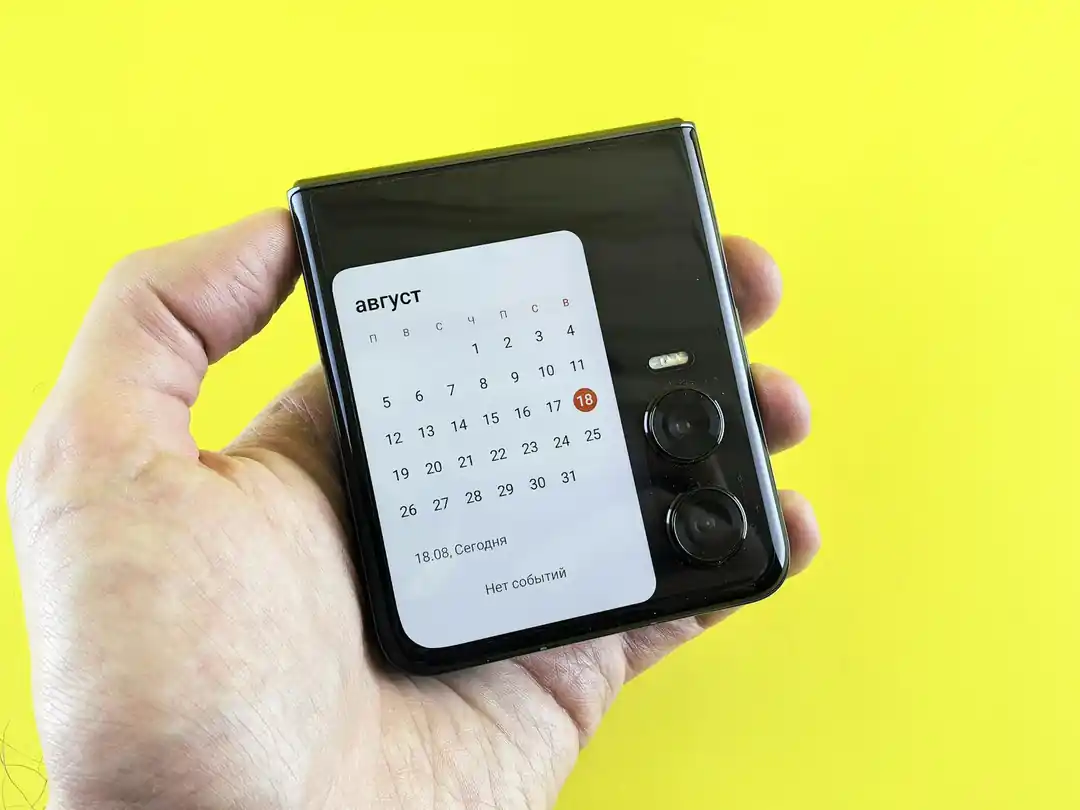
From Fragile to Formidable: The Surprising Evolution of Foldable Phone Durability
Remember when the idea of folding a smartphone screen in half felt like a disaster waiting to happen? Let's talk about how far they've come, because the story is pretty incredible.

Popular Posts

Rethinking Non-Profit Promotion: Creative Strategies That Actually Drive Event Impact

Beyond Stark White: The Best Interior Paint Colors to Light Up Your New Space

How to Actually Master a New Language on Your Own (No Magic Gene Required)